How to join Android Testers
Follow these steps to request access to the Google Group, join a closed test for the app you want, install it and share feedback.
Screenshots are from a real phone. Google Groups and Google Play screens may look slightly different on your device.
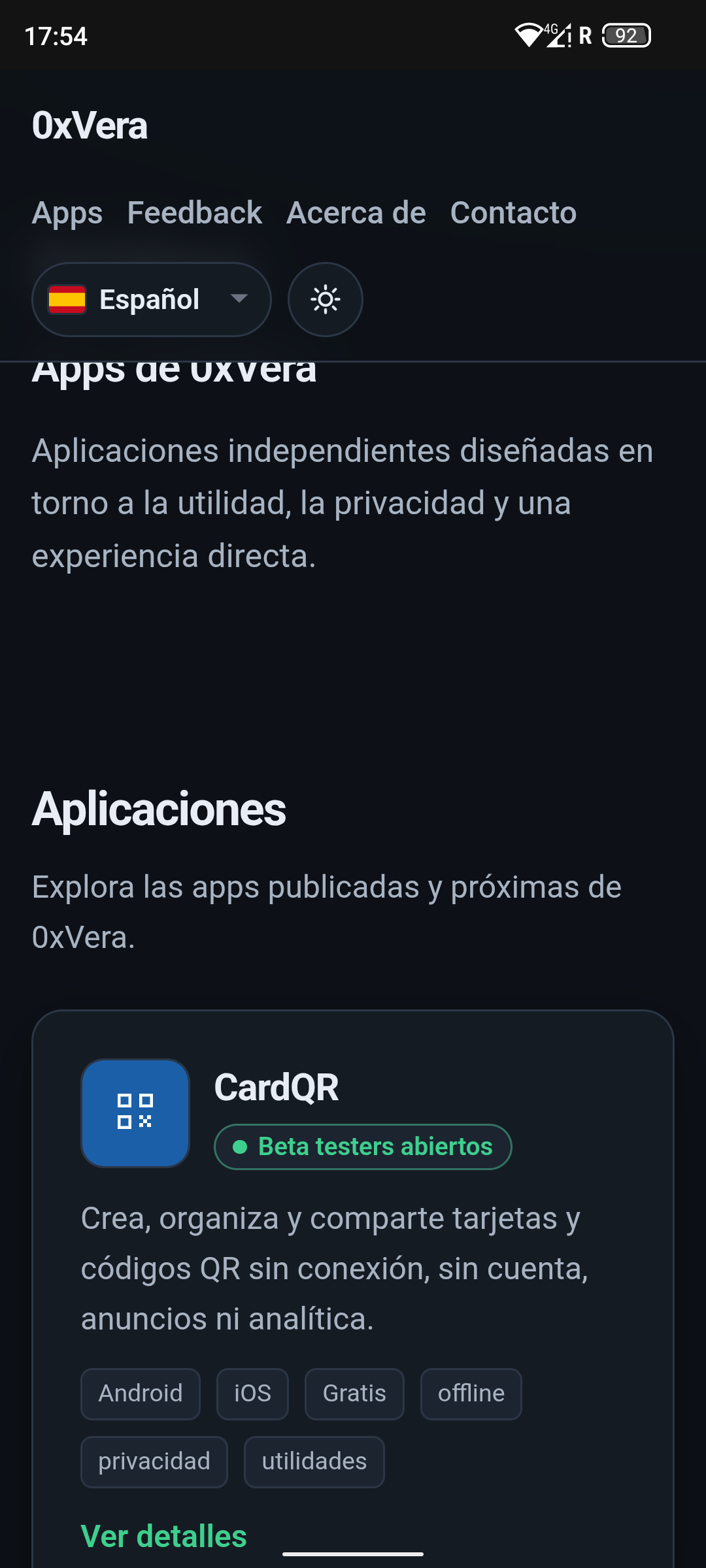
1Browse the apps on apps.0xvera.com
Open the catalog and check which apps show open beta testing. Start with the app you want to try.
2Open Android Testers and join the Google Group
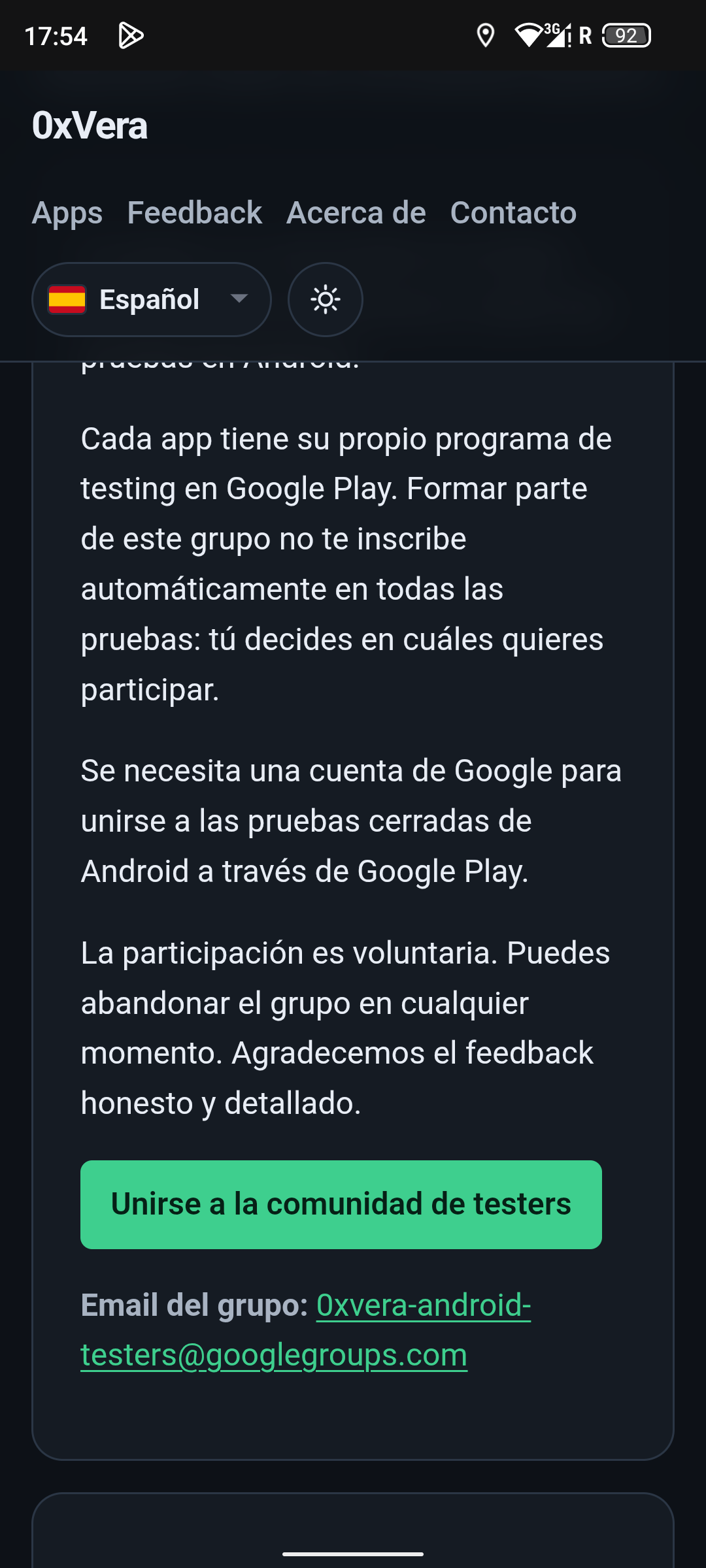
Go to the Android Testers page (also in the site menu) and tap “Join the tester community”. You need a Google account. Joining the group does not enrol you in every app automatically.
3Wait until your membership is approved
After you ask to join the Google Group, wait until an owner approves the request. You will only see the tester conversations once you are a member.
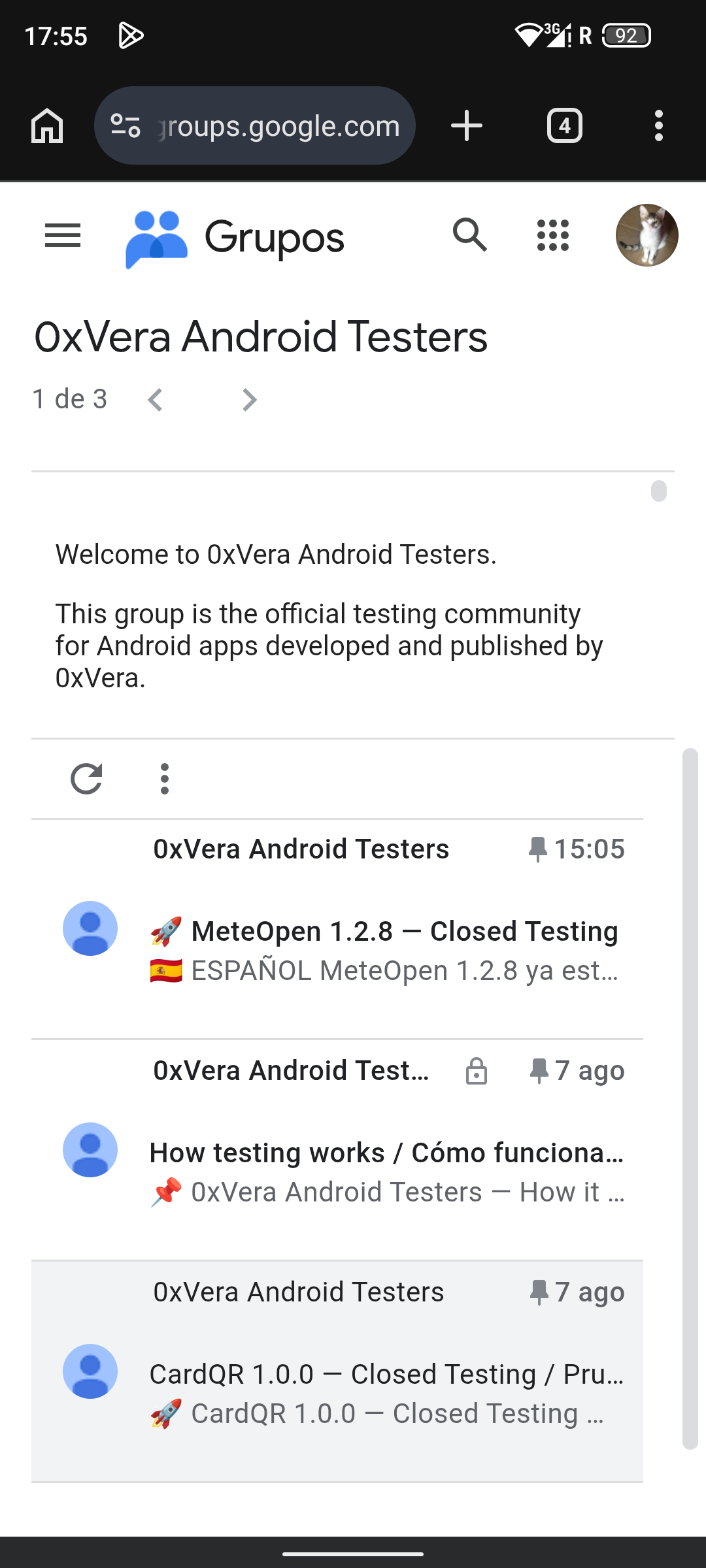
4Open the conversation for the app you want to test
In the group, open the conversation for that app. Inside you will find the Google Play closed-testing / opt-in link.
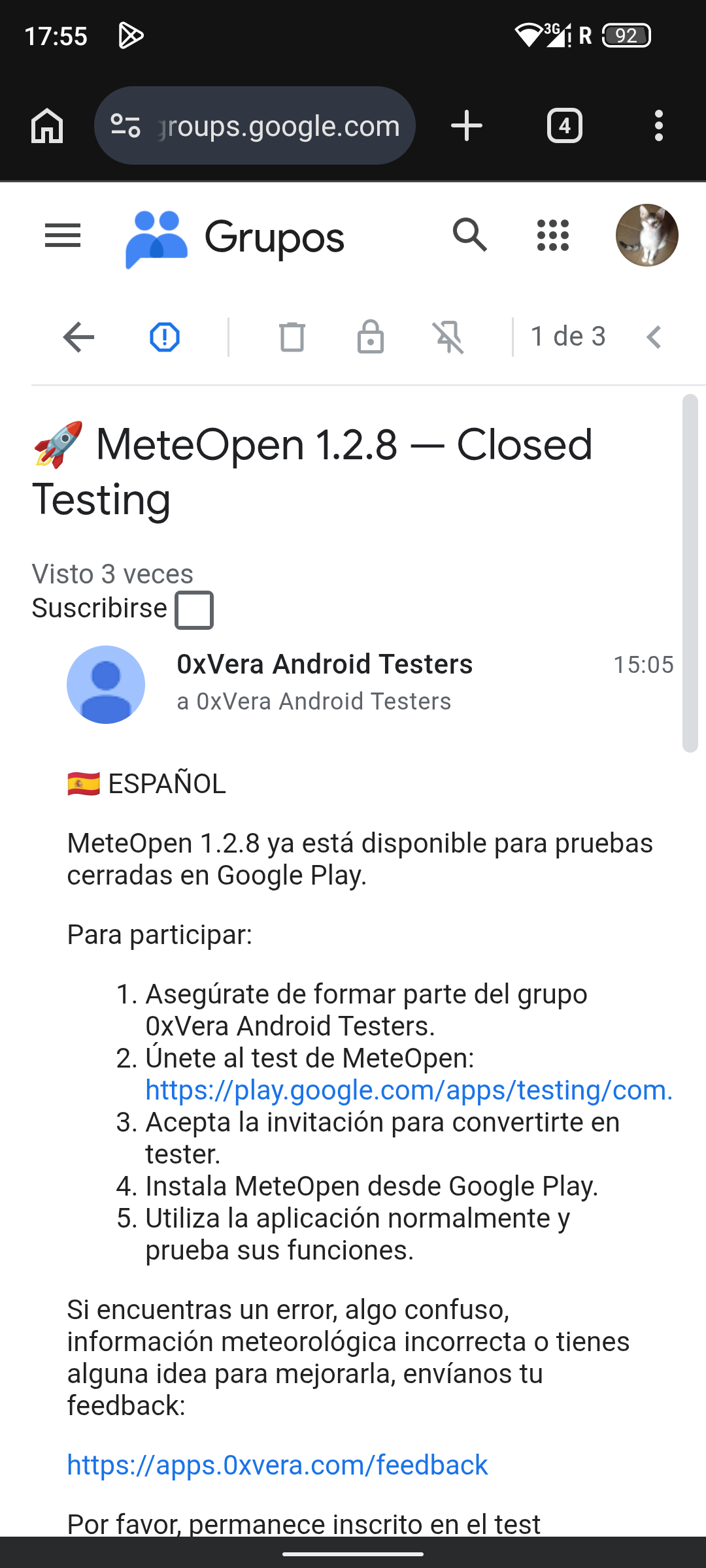
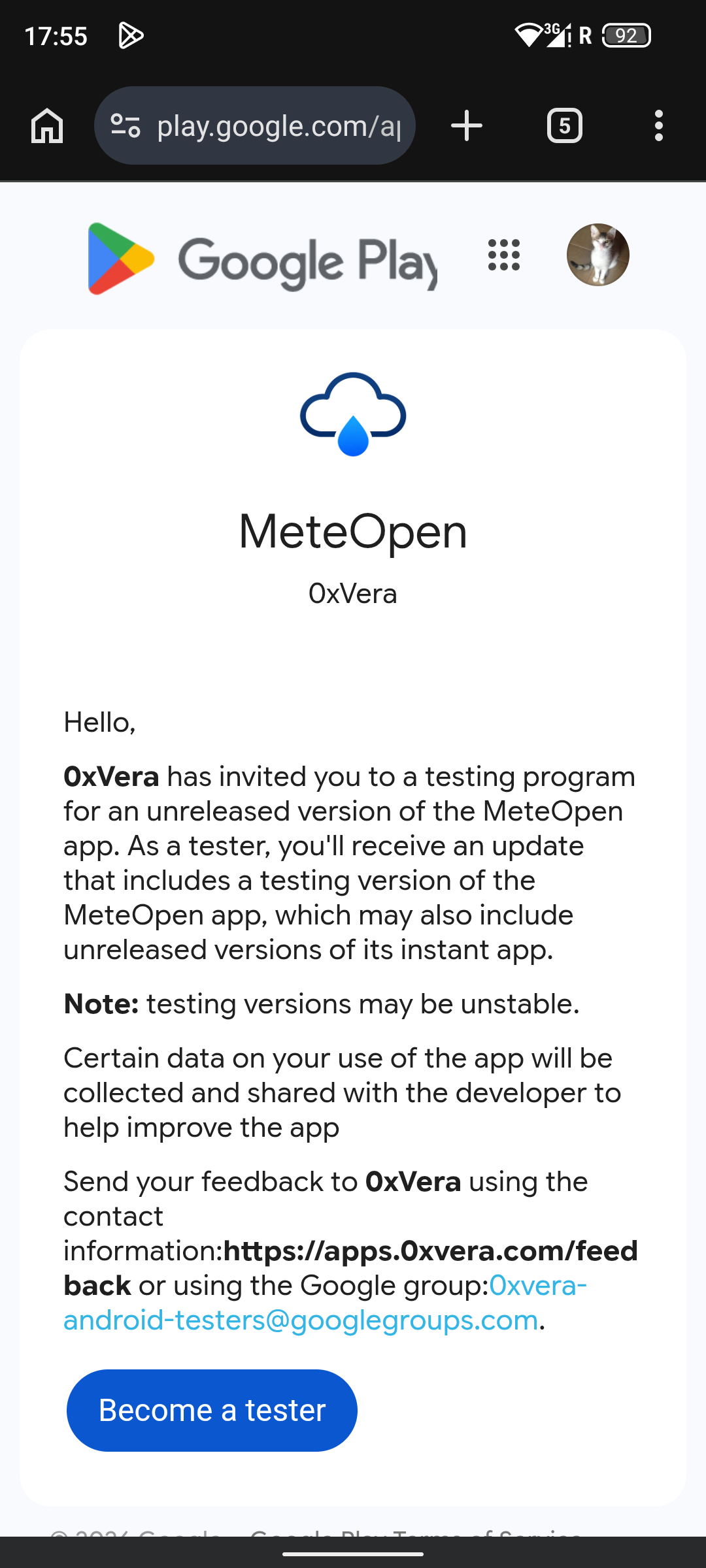
5Become a tester on Google Play
Open the opt-in link and tap “Become a tester”. Because you are already in the group, Play usually accepts you right away and shows that you are a tester, with a link to download the app on Google Play.
The download link is created after Google checks that you are in the tester group. That can take a few seconds. If you tap it too soon, Play may say the app is not available — wait a moment and tap again.
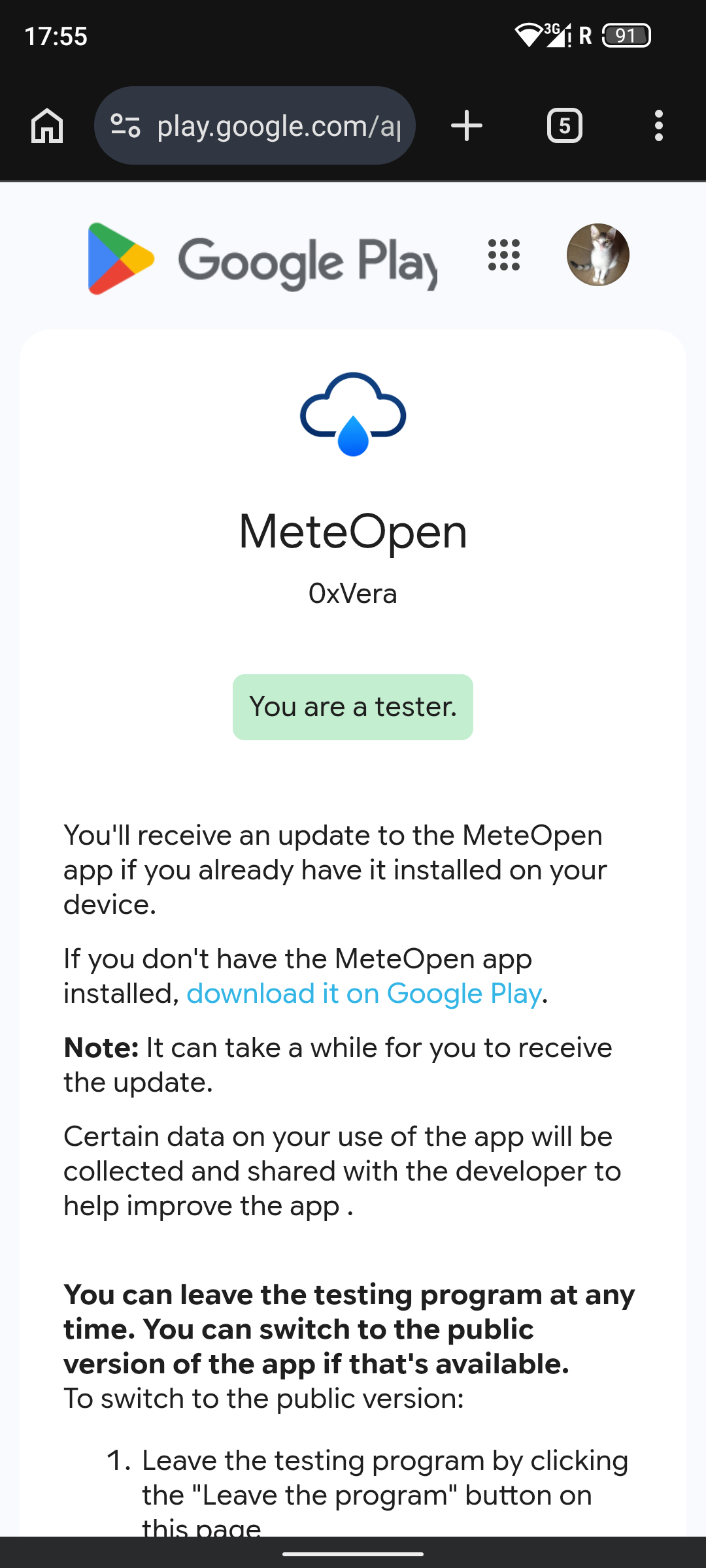
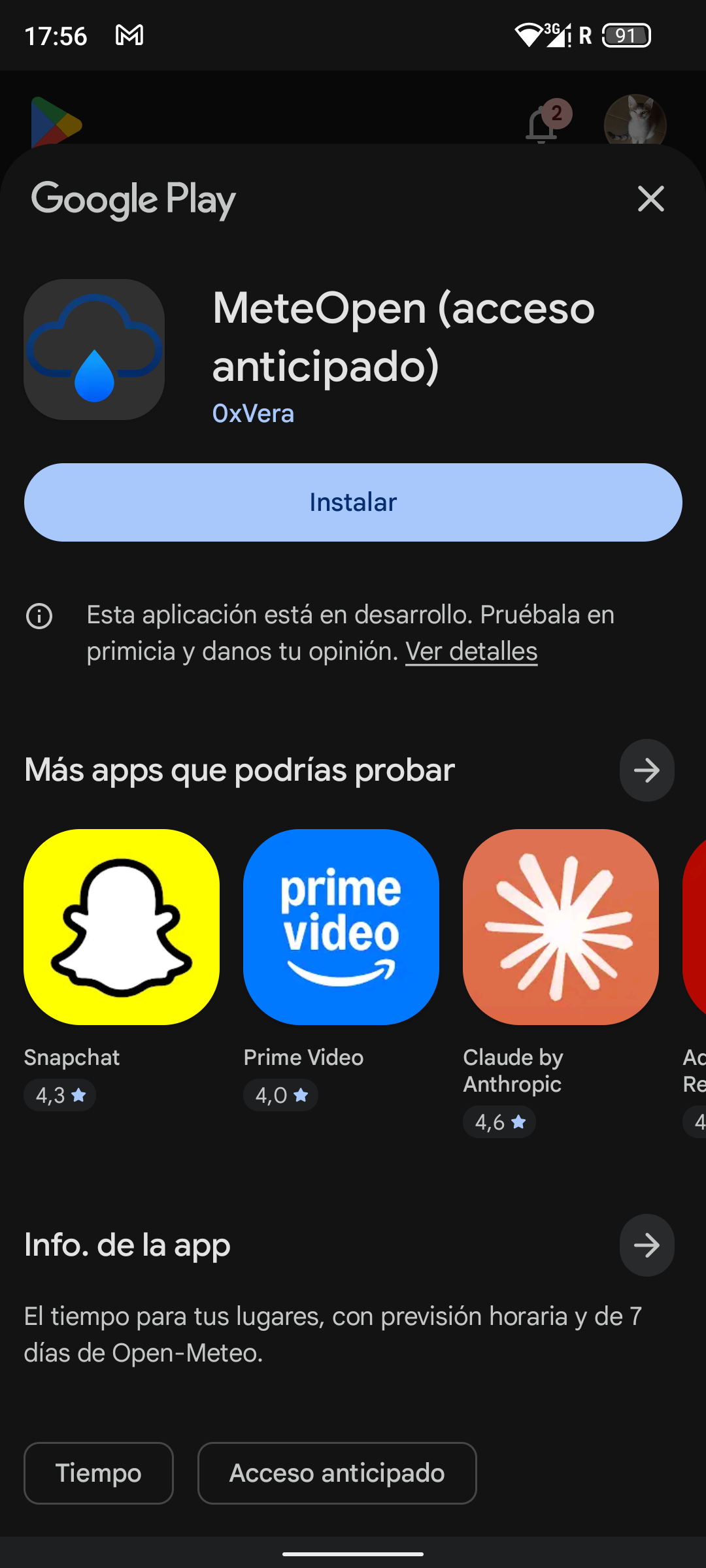
6Install the app from Google Play
Use “Download it on Google Play” (or open the listing) and install the testing build. It appears like a normal Play install for enrolled testers. If the listing looks missing or errors on the first try, wait a few seconds and open the link again.
7Try the app and send feedback
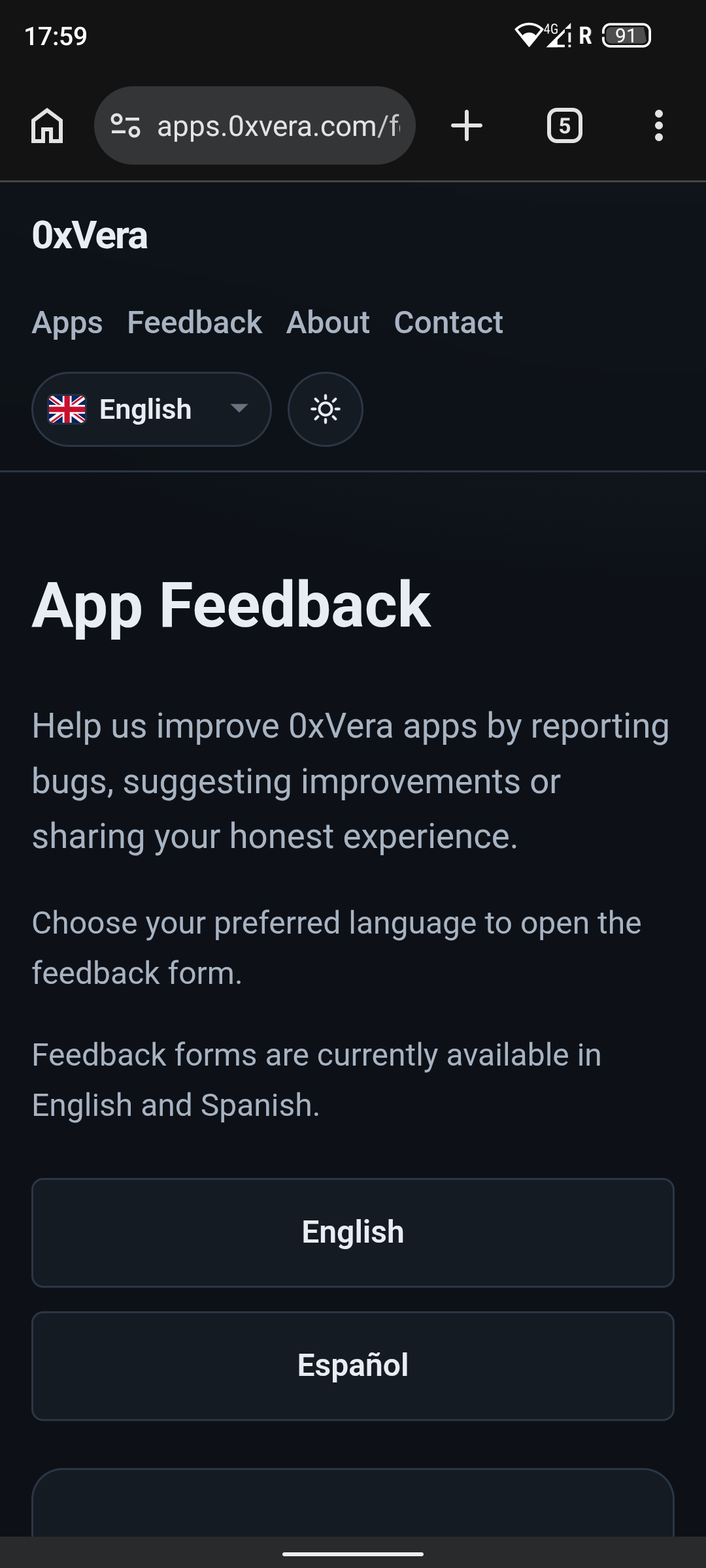
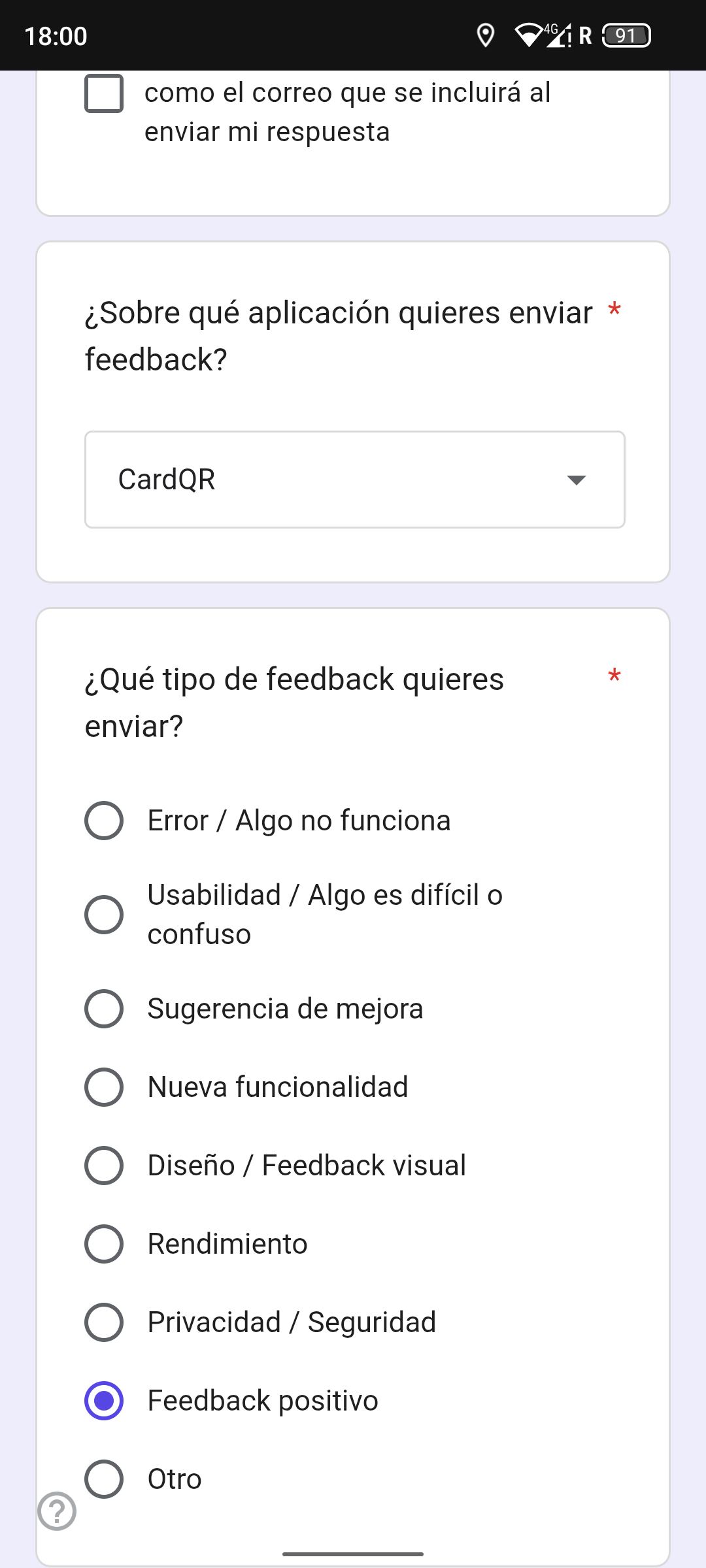
After testing, open App Feedback on this site. Positive feedback helps, but if you find a bug or something confusing, please report it — and send a separate report for each issue you notice.